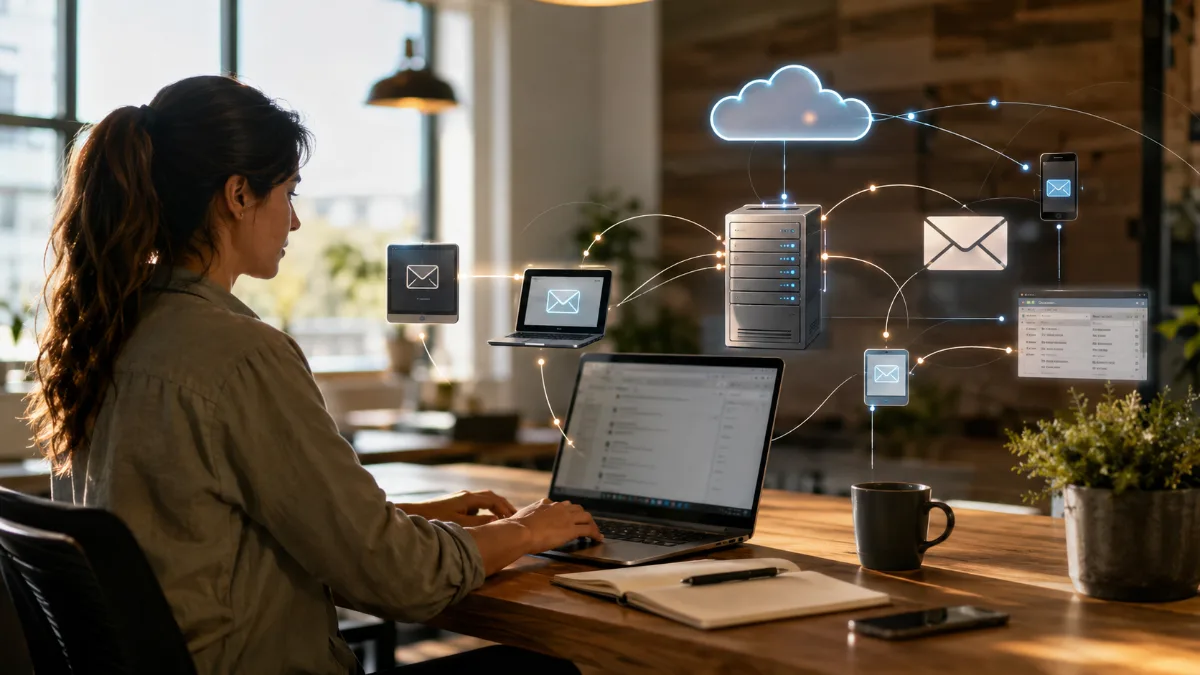
🚀 SMTP vs IMAP vs POP3: How Email Actually Works Behind the Scenes
Sending an email takes just a few seconds. You type a message, click Send, and assume it instantly reaches the other person.
But have you ever wondered what actually happens after that button is pressed?
How does your email travel across the internet? Where do replies go? And why do some websites send emails successfully but never receive the replies?
If you've ever set up a business email, built a website, or developed a web application, understanding SMTP, IMAP, and POP3 is essential.
These three technologies form the foundation of almost every email system in the world.
📧 Understanding an Email System
A complete email system has two major responsibilities.
📤 Sending Emails
This is when your application sends an email to someone else.
Examples include:
- Welcome emails
- Password reset links
- OTP verification
- Order confirmations
- Contact form notifications
- Marketing campaigns
📥 Receiving Emails
This happens when someone replies to your email or sends you a new message.
Examples include:
- Customer support replies
- Business inquiries
- Client communications
- Job applications
- Contact form responses
A complete email system needs both.
Many beginners only configure email sending and forget about receiving.
🌍 How an Email Travels Across the Internet
Imagine you send an email from:
yourname@yourdomain.comto
client@example.comThe process looks like this:
You │ ▼ SMTP Server │ ▼ Internet │ ▼ Recipient's Mail Server │ ▼ Recipient InboxNow suppose the client clicks Reply.
The reply doesn't magically come back to your application.
Instead, it follows another journey.
Client │ ▼ Client Mail Server │ ▼ Your Mail Server │ ▼ IMAP │ ▼ Your InboxThe important thing to remember is:
Replies always return to the same email address that originally sent the message unless a different Reply-Toaddress has been configured.
📤 What Is SMTP?
SMTP (Simple Mail Transfer Protocol) is responsible for sending emails.
Think of SMTP as the courier service of the email world.
Its only job is delivering outgoing messages.
Once the email reaches the destination mail server, SMTP's work is finished.
Common Uses
- OTP emails
- Password resets
- Contact forms
- Newsletters
- Order confirmations
- Notifications
What SMTP Cannot Do
SMTP does not receive emails.
It also cannot display your inbox.
It simply sends mail.
📥 What Is IMAP?
IMAP (Internet Message Access Protocol) is designed for receiving emails.
Instead of downloading messages permanently, IMAP keeps them on the mail server and synchronizes every connected device.
That means:
- Your laptop
- Your phone
- Your tablet
- Outlook
- Gmail
can all show exactly the same inbox.
Delete an email on one device...
It disappears everywhere.
Read an email on your laptop...
It automatically appears as read on your phone.
That's why IMAP is the standard choice for modern email services.
📦 What Is POP3?
POP3 (Post Office Protocol) is another receiving protocol, but it works differently.
Instead of synchronizing emails, POP3 usually downloads them to one device.
Depending on the configuration, the server copy may even be deleted after download.
This makes POP3 suitable for simple offline access, but less practical in today's multi-device world.
📊 SMTP vs IMAP vs POP3
| Feature | SMTP | IMAP | POP3 |
|---|---|---|---|
| Send Emails | ✅ | ❌ | ❌ |
| Receive Emails | ❌ | ✅ | ✅ |
| Inbox Synchronization | ❌ | ✅ | ❌ |
| Multiple Devices | ❌ | ✅ | Limited |
| Offline Storage | ❌ | Partial | ✅ |
| Modern Recommendation | Required | Recommended | Legacy Use |
📬 What Exactly Is an Inbox?
An inbox is simply a folder where incoming emails are stored.
It allows you to:
- Read emails
- Reply to messages
- Delete emails
- Organize conversations
- Search previous messages
Without an inbox, replies may still reach your mail server—but you won't have an easy way to access them.
💻 Where Can You Access Your Inbox?
There are several ways to read incoming emails.
🌐 1. Webmail
Most hosting providers include browser-based webmail.
You simply log in and access your inbox online.
Popular examples include:
- Roundcube
- Horde
- RainLoop
📱 2. Email Clients
You can connect your business email to applications like:
- Gmail
- Microsoft Outlook
- Apple Mail
- Thunderbird
After configuring IMAP, every email automatically appears inside your preferred client.
⚙️ 3. Custom Applications
Modern SaaS platforms often build their own inboxes.
Instead of using Gmail or Outlook, the application fetches emails using IMAP, stores them in a database, and displays them through its own interface.
This is common in:
- Help Desk Software
- CRM Platforms
- Customer Support Systems
- Shared Team Inboxes
🏢 Real-World Example
Imagine you own a business.
You send an email from:
support@yourcompany.comto a customer.
The customer replies.
Two different scenarios are possible.
| Configuration | Result |
|---|---|
| SMTP + IMAP | Reply appears in your inbox ✅ |
| SMTP Only | Reply reaches the server but isn't easily accessible through your application ❌ |
This is one of the most common email setup mistakes.
💬 Can You Reply to Incoming Emails?
Absolutely.
Here's how it works:
- Customer sends an email.
- IMAP retrieves it.
- You click Reply.
- SMTP sends your response.
Receiving and sending work together, but they are separate technologies.
⚠️ The Most Common Email Configuration Mistake
Many websites successfully send emails but never receive replies.
Why?
Because developers only configure SMTP.
The receiving side is completely ignored.
As a result:
- Contact forms work.
- Order confirmations work.
- Password reset emails work.
But customer replies never appear where they're expected.
The solution is simple:
Configure IMAP (or POP3) and ensure your inbox is accessible.
📋 Complete Email Setup Checklist
A professional email system should include:
✅ Business email address
Example:
hello@yourdomain.com✅ SMTP server
For sending emails.
✅ IMAP (or POP3)
For receiving emails.
✅ Inbox access
Through Webmail, Gmail, Outlook, or your own application.
🎯 Which Setup Is Right for You?
| Project Type | Recommended Setup |
|---|---|
| Business Website | SMTP + IMAP |
| Portfolio Website | SMTP |
| E-commerce Store | SMTP + IMAP |
| CRM Software | SMTP + IMAP + Custom Inbox |
| Customer Support Platform | SMTP + IMAP |
| Marketing Platform | SMTP |
💡 Best Practices
- Always use a professional domain email instead of a free personal address.
- Configure SPF, DKIM, and DMARC records to improve email deliverability.
- Prefer IMAP over POP3 unless offline storage is specifically required.
- Separate transactional emails from marketing emails whenever possible.
- Regularly monitor inbox storage and server health.
✅ Final Thoughts
A complete email system is much more than simply sending messages.
SMTP ensures your emails leave successfully.
IMAP makes sure replies come back to an accessible inbox.
POP3 offers an alternative for offline retrieval.
When these components work together, your business can communicate reliably with customers, clients, and partners.
Whether you're running a simple website or building a sophisticated SaaS platform, understanding the difference between SMTP, IMAP, and POP3 will help you create an email system that not only sends messages—but also keeps every important conversation connected.
---ends here---
