How to Completely Reset GitHub Desktop on macOS
Reinstalling GitHub Desktop didn’t fix your glitch or authentication loop? That’s because dragging the app to the Trash leaves behind hidden files. Here’s how to wipe its local footprint for a true factory reset on macOS.

Ever had GitHub Desktop get so hopelessly stuck in an authentication loop, or get so weirdly glitched out that even downloading it again didn't fix it?
That's because simply dragging the app to the Trash doesn't actually delete it. macOS leaves behind a trail of hidden configuration files, old login tokens, and cached states. When you reinstall the app, it just pulls those exact same broken files right back in.
If you want to give GitHub Desktop a genuinely fresh, factory-reset start on your Mac, you have to clear its entire local footprint. Here is exactly how to do it.
Step 1: Make sure the app is completely closed
Before messing with any background files, you need to ensure the app isn't trying to lock those directories.
- Click into the app and hit Cmd + Q, or right-click the icon in your Dock and click Quit.
- If the app is totally frozen and won't close, open up Activity Monitor (press Cmd + Space and search for it), look for "GitHub Desktop," and hit the "X" button at the top to force stop it.
Step 2: Clear out your old login tokens
GitHub Desktop stores your secure account passwords and SSH keys inside your Mac’s built-in system keychain. If you skip this step, you’ll find yourself automatically logged right back into your old account the second you reopen the app.
- Open up Keychain Access (Cmd + Space and type "Keychain Access").
- In the search bar at the top right, type github.com.
- Look for items labeled as application password or Internet password (they usually just say github.com or GitHub Desktop).
- Right-click them and choose Delete.
Step 3: Purge the hidden configuration folders
This is where the actual root of the problem usually lives. These files are hidden away in your user account's secret ~/Library folder.
- Open up Finder.
- Look at the very top menu bar on your Mac, click Go, and then hold down the Option (⌥) key on your keyboard. You’ll see a hidden Library folder suddenly pop up in the list—click it.
- Now, navigate through these folders and move the following items to the Trash:
- In Application Support: Delete GitHub Desktop and GitHub Desktop-Caches
- In Caches: Delete com.github.GitHubClient and com.github.GitHubClient.ShipIt
- In Preferences: Delete com.github.GitHubClient.plist
- In Saved Application State: Delete com.github.GitHubClient.savedState
- In Logs: Delete the GitHub Desktop folder if you see one there.
⚡ The Quick Way: Use the Terminal
If you don't feel like clicking through a dozen hidden Finder folders, you can just let the command line do it all in two seconds. Open up your Terminal app and paste this single command:
Step 4: Reinstall a clean copy
Now that your Mac has absolutely no memory of the old app:
- Drag the actual GitHub Desktop icon from your Applications folder into the Trash and empty it.
- Head over to desktop.github.com to download a completely fresh copy.
- Run the installer, fire it up, and you’ll be greeted by the original welcome screen as if you've never used the app before.
⚠️ Don't worry about your code: Doing this will not touch your actual project files or Git repositories. Your code is perfectly safe on your hard drive. Once the app is reinstalled, you'll just click "Add Existing Repository" to point it back to your project folders, and you'll be right back to work.
----ends here___
On This Page

Subscribe to One2Tech Insights
Stay updated with our latest development and tech guides.
More from Dev & AI
View all
How to Turn Your Android Phone into a Local Shared Drive Using Wi-Fi Hotspot
You can turn your Android phone into a local file-sharing server and access a specific folder from Windows, Mac, or other phones connected to its Wi-Fi hotspot.
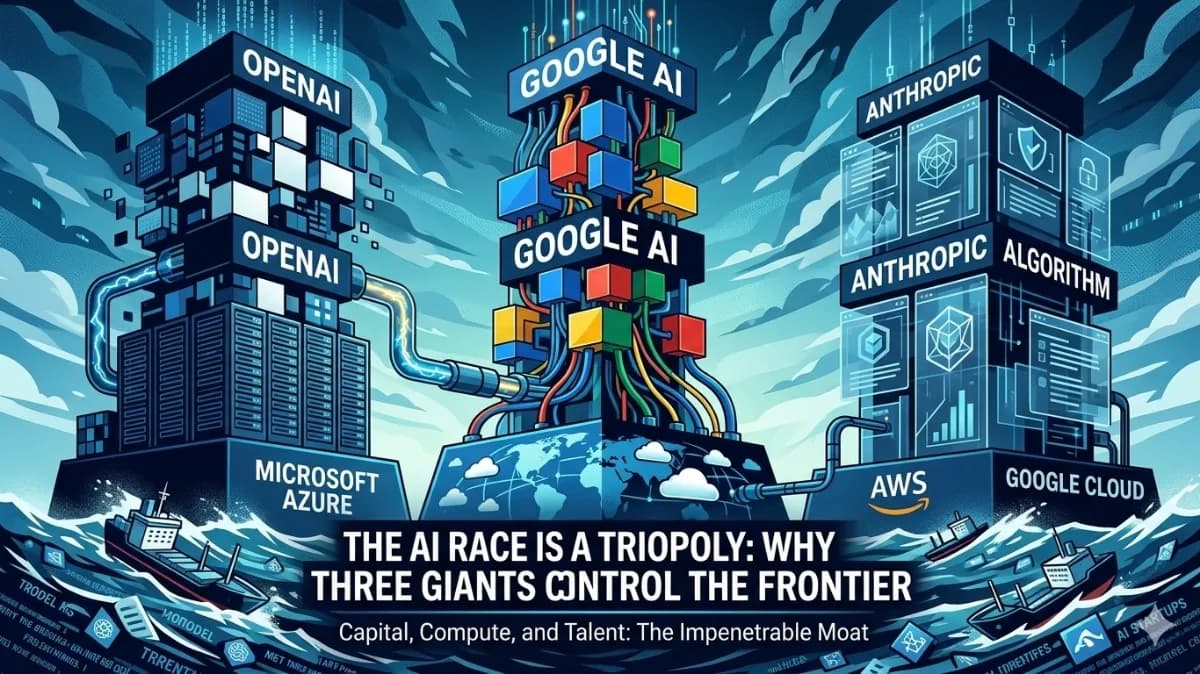
The AI Triopoly: Unpacking the Dominance of Google, OpenAI, and Anthropic
The global AI landscape appears vast, but beneath the surface, a triopoly of Google, OpenAI, and Anthropic controls nearly 90% of frontier AI capabilities. This trio has built an impenetrable moat around the future of technology, making it mathematically improbable for new entrants to break in. In this article, we'll delve into the data-driven breakdown of how these three players established their structural monopoly and why it's so difficult to disrupt.