How to Turn Your Android Phone into a Local Shared Drive Using Wi-Fi Hotspot
You can turn your Android phone into a local file-sharing server and access a specific folder from Windows, Mac, or other phones connected to its Wi-Fi hotspot.
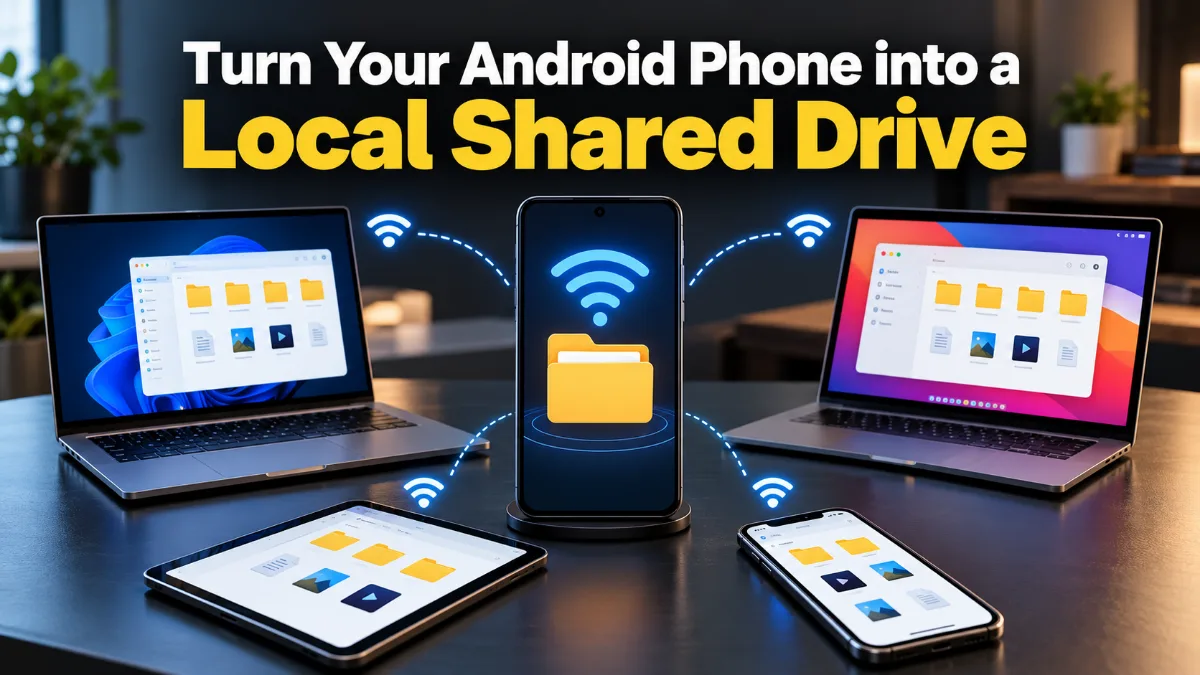
You can turn your Android phone into a local file-sharing server and access a specific folder from Windows, Mac, or other phones connected to its Wi-Fi hotspot. No internet connection or USB cable is required.
1. Set Up a Local File Server
- Enable the Wi-Fi hotspot on your Android phone.
- Connect your PC, MacBook, or other phones to the hotspot.
- Install a file-sharing app such as AnExplorer.
- Open its Transfer to PC or network-sharing feature.
- Select the folder you want to share and start the server.
The app will display a local URL, such as "http://192.168.43.1:8000".
Open this URL in a browser on another connected device to access the shared files. Uploading files depends on the app's supported features.
2. Is the IP Address Static or Dynamic?
The IP address may remain the same across hotspot sessions, but it is not guaranteed to stay unchanged.
- IP address: Identifies your phone on the local network.
- Port: Identifies the service running on your phone, such as "8000".
- Example: "http://192.168.43.1:8000"
If the IP address changes, you may need to use the new address.
3. Can You Use "localhost" Instead?
No. The hostname "localhost" always refers to the device you are currently using.
- On Android, "localhost" refers to Android itself.
- On Windows, it refers to your PC.
- On macOS, it refers to your Mac.
To access the Android server from another device, you need the phone's local IP address or a hostname that resolves to it.
4. Use a Hostname Instead of an IP Address
You could use an address such as "http://myshare.local:8000" instead of remembering the IP address.
This may be possible using Multicast DNS (mDNS), which allows compatible devices to discover each other by hostname on a local network.
However, it works only when the server, Android hotspot, and connected devices support the required network discovery. Not every Android hotspot or file-sharing app supports this configuration.
5. Which Protocol Is Best for a Shared Drive?
Choose the protocol based on how you want to access your files:
- HTTP: Access files through a web browser.
- FTP/SFTP: Transfer files using a compatible client.
- SMB: Access a shared folder like a network drive in Windows or macOS.
- WebDAV: Manage remote files using compatible applications.
For simple file sharing, HTTP is usually the easiest option. If you want the folder to behave like a network drive, look for an Android server app that supports SMB or WebDAV.
Conclusion
An Android hotspot can provide a local network for sharing files without internet access. Use a file-server app for quick access, and consider mDNS for hostname-based access or SMB for a traditional network drive. Remember that a fixed port does not guarantee a fixed IP address, and hostname access depends on network compatibility.
Key Architectural Takeaway: Public, keyless AI infrastructure serves as an agile catalyst during early product discovery—eliminating administrative credentials and allowing engineers to validate features, mock dynamic states, and test responsive UI boundaries with zero friction.
On This Page
Watch Tutorial
How to Build Complete School Run Website FREE Within Minutes | Deploy & Earn Money 💰

Subscribe to One2Tech Insights
Stay updated with our latest development and tech guides.
More from Productivity
View all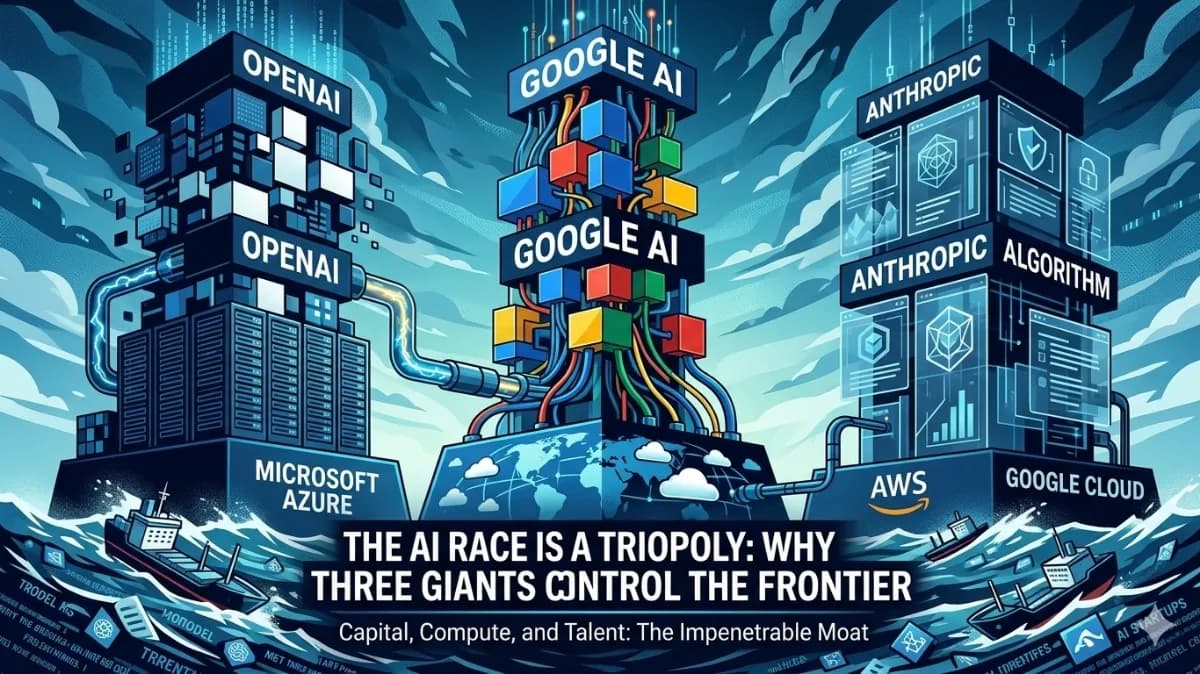
The AI Triopoly: Unpacking the Dominance of Google, OpenAI, and Anthropic
The global AI landscape appears vast, but beneath the surface, a triopoly of Google, OpenAI, and Anthropic controls nearly 90% of frontier AI capabilities. This trio has built an impenetrable moat around the future of technology, making it mathematically improbable for new entrants to break in. In this article, we'll delve into the data-driven breakdown of how these three players established their structural monopoly and why it's so difficult to disrupt.
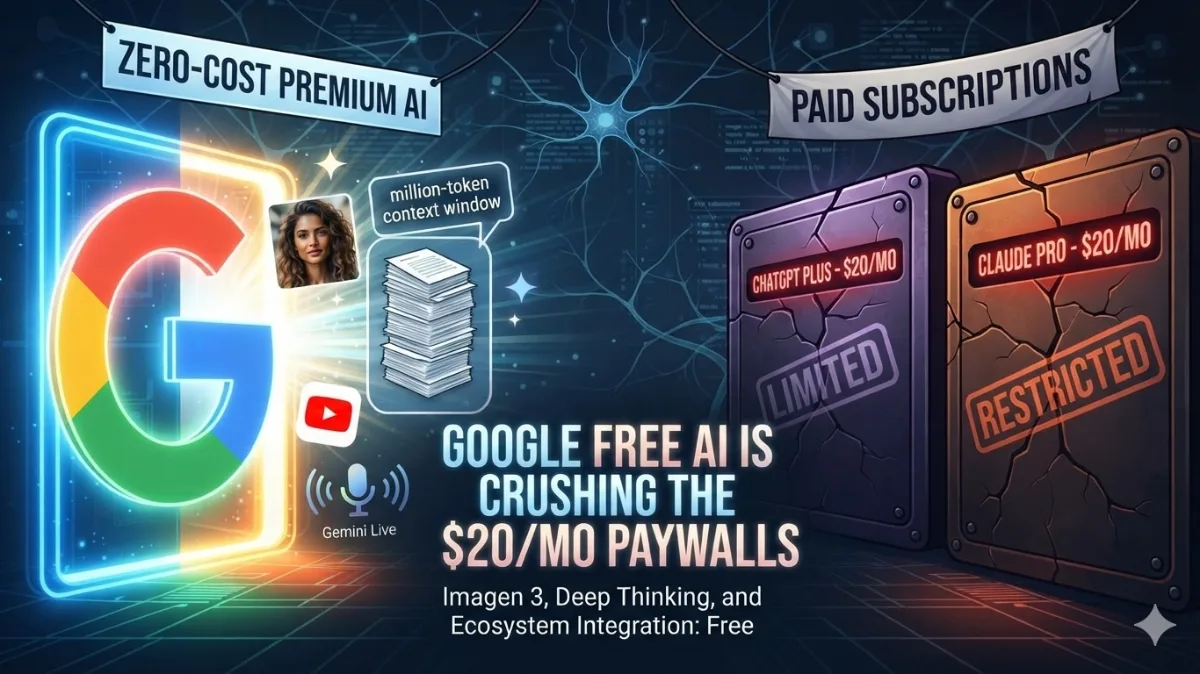
Google’s Free AI Trap: Why OpenAI and Anthropic Are Scrambling to Justify Their $20 Paywalls
If you are still paying $20 a month for ChatGPT Plus or Claude Pro, it might be time to check your bank statements.