How to Turn Any AI-Generated UI Component into an Industry-Grade Masterpiece (With One Prompt)
TL;DR: AI coding assistants write functional frontend code, but their visual defaults often look clunky and unpolished. Below is a 5-step UI engineering framework—plus a universal copy-paste prompt—that instantly upgrades any AI-generated modal, banner, or card into a production-ready component.
Why Does AI-Generated UI Look Like a Prototype?
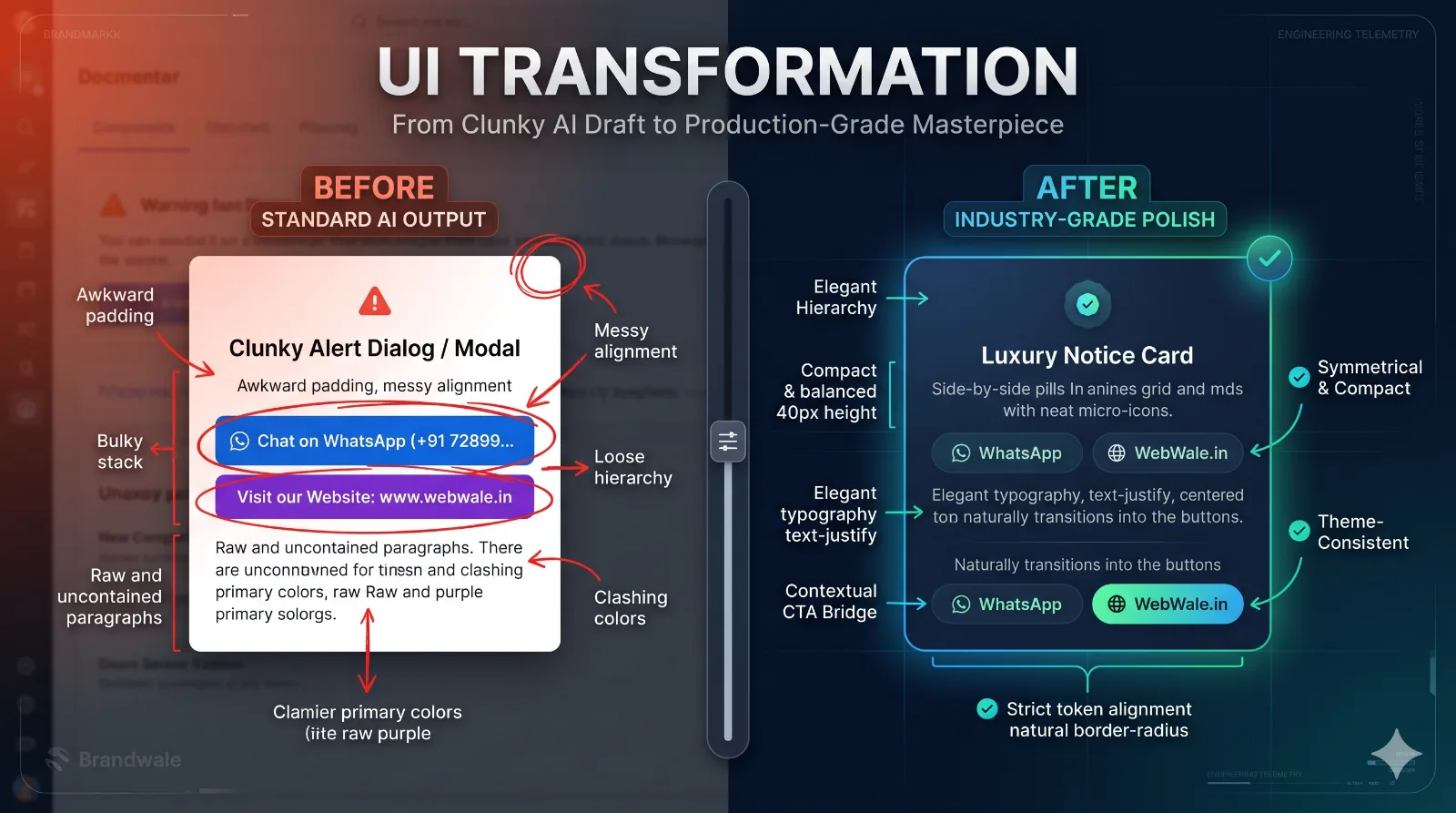
Ask an AI coding assistant to build a modal, notice banner, or product card, and it will generate code that compiles on the first try. Visually, however, you will almost always run into the same five symptoms:
- Bulky Vertical Stacks: Overly tall, full-width buttons stacked on top of each other that push critical content off the screen.
- Cluttered Button Labels: Raw URLs, phone numbers, or long action strings pasted directly onto the button face.
- Unbalanced Typography: Ragged paragraph widths, cramped line heights, and awkward text wraps.
- Disconnected CTAs: Action buttons bolted onto the bottom of a card with zero context explaining why they are there or what happens next.
- Random Color Palettes: Hardcoded utility classes (
bg-blue-600,text-gray-500) that ignore your project's actual design system tokens.
To fix this, you don't need to rewrite CSS by hand. You just need to guide the AI using the 5 Pillars of Observer-Level UI Craft.
The 5 Pillars of Production-Grade UI
1. Strict Token & Theme Inheritance
- What to avoid: Letting the AI guess colors using generic utility classes (
bg-indigo-500,border-gray-200). - How to fix it: Instruct the AI to inspect and inherit your project's semantic tokens (
bg-primary,text-foreground,border-border,bg-muted) or CSS variables. - Accessibility check: Enforce WCAG AA/AAA contrast ratios across both light and dark modes by default.
2. Symmetrical Visual Hierarchy
Instead of dumping a heading and paragraph onto a flat box, structure the card into three distinct visual layers:
- The Eyebrow Badge: Anchor the top with a centered pill using a soft semantic tint (
bg-primary/10 text-primary) and a subtle micro-icon (14px–16px). - The Editorial Heading: Use a crisp title with tight letter tracking (
tracking-tight) and controlled line height (leading-snug). - The Recessed Body Container: Wrap the descriptive text inside a soft inner container (
bg-muted/40with a1pxsubtle border androunded-2xlcorners). This separates the message from the outer card frame without adding visual clutter.
3. The "Contextual CTA Bridge"
One of the biggest flaws in AI-generated UI is the cognitive gap between the body text and the buttons. If an alert card states a system status and immediately shows two buttons ("Contact Support" and "Documentation"), the user has to pause and guess which one they actually need.
- The Rule: The final sentence of your body copy must act as a bridge that justifies the buttons below it.
❌ Abrupt: "Your deployment is currently paused due to a billing verification check."
[Contact Support][View Docs]✅ Bridged: "Your deployment is currently paused. To resume immediately or update your configuration, reach out to our team or review the billing guide below."
[Live Chat][Billing Guide]
4. Side-by-Side Touch Ergonomics
Unless you are building a multi-step checkout flow, full-width stacked buttons waste space and create visual fatigue.
- Use a 2-Column Grid: Place primary and secondary actions side-by-side (
grid grid-cols-2 gap-2.5 sm:gap-3). This creates instant symmetry and cuts modal height by up to 40%. - Keep Heights Sleek: Target an ergonomic button height of
40pxto44px(h-10toh-11). - Write 2-Word Labels: Never put raw URLs or email addresses inside a button. Pair a clean icon with a 1–2 word label (e.g.,
[MessageIcon] Live Chator[ExternalLinkIcon] View Docs). - Center Tertiary Links: Place low-priority actions (like "Dismiss", a support email, or a reference ID) as a subtle text link centered beneath the main button grid.
5. Mobile-First Viewport Resilience
A card that looks great on a 27-inch monitor can easily break on a compact smartphone or in mobile landscape mode.
- Constrain the Width: Use
max-w-[440px]ormax-w-[460px]to keep reading lines at an optimal 45–65 characters. - Protect the Viewport: Apply
max-h-[92dvh] overflow-y-autowith responsive padding (p-4 sm:p-6) so mobile browser toolbars never cut off your action buttons. - Balance Text Wrapping: Combine
leading-[1.65]withtext-pretty(ortext-justifyinside structured containers) for clean, predictable margins.
Before & After: Quick Reference
| UI Dimension | ❌ Standard AI Output (Before) | ✅ Production Polish (After) |
|---|---|---|
| Theme & Colors | Hardcoded defaults (bg-blue-500, gray-200) |
Project semantic tokens (bg-primary, border-border) |
| Action Layout | Stacked full-width buttons with long labels | Side-by-side compact buttons in a grid-cols-2 layout |
| Button Height | Bulky 48px–54px blocks |
Sleek, ergonomic 40px (h-10) profile |
| Body Copy | Uncontained, ragged paragraphs | Balanced leading-[1.65] text inside a recessed container |
| User Flow | Abrupt jump from problem statement to buttons | Contextual CTA Bridge explaining why and where to click |
| Mobile Footprint | 550px+ height; requires awkward scrolling |
Compact ~360px–380px height; fits any mobile screen |
The Universal Master Prompt (Copy & Paste)
Save this prompt in your snippet manager. Drop it into Cursor, Claude, Windsurf, GitHub Copilot, or ChatGPT whenever you want to create or refactor a modal, alert dialog, product card, onboarding step, or banner.
💡 How to use: Just replace the bracketed
[COMPONENT NAME / TYPE]in the first line with the component you are working on.
Refactor and polish the [COMPONENT NAME / TYPE: e.g., modal / info card / onboarding dialog / feature banner] with industry-grade visual craft, optical symmetry, and strict design-system coherence:

1. THEME & TOKEN INHERITANCE:
   - Inspect and strictly inherit the project's existing design tokens (primary/secondary brand colors, muted surface backgrounds, border tokens, border-radius scale, and typography variables). Do not introduce arbitrary hardcoded colors.
   - Ensure WCAG AA/AAA-compliant contrast ratios across all text and interactive states.

2. VISUAL HIERARCHY & OPTICAL SYMMETRY:
   - Top Eyebrow: Include a clean, centered pill badge with a subtle semantic background tint (`bg-primary/10`) and a micro-icon (`14px-16px`).
   - Heading: Use prominent, balanced typography with tight tracking (`tracking-tight`) and controlled leading (`leading-snug`).
   - Recessed Body Container: Wrap body details in a subtle nested surface (`bg-muted/40 border border-border/60 rounded-2xl p-4`). Use `leading-[1.65]` and balanced text wrapping (`text-pretty` or `text-justify`) for clean margins.
   - Contextual CTA Bridge: Ensure the final sentence of the body copy naturally bridges into and justifies the action buttons below, clearly stating what happens when the user clicks.

3. ACTION AREA & TOUCH ERGONOMICS:
   - Side-by-Side Dual Actions: Place primary and secondary buttons in a balanced 2-column grid (`grid grid-cols-2 gap-2.5 sm:gap-3`).
   - Compact Touch Sizing: Keep buttons sleek and ergonomic (`h-10` to `h-11`, ~40-44px height) to avoid vertical bulk.
   - Scannable Micro-Copy: Keep button labels concise (1–2 words + icon, e.g., "Get Started", "View Docs", "Live Chat"). Never paste raw URLs, phone numbers, or long sentences inside a button face.
   - Tertiary Anchor: Place secondary or tertiary actions (e.g., direct email link, "Dismiss", or support reference) centered cleanly beneath the primary button grid.

4. MOBILE-FIRST & VIEWPORT RESILIENCE:
   - Constrain width (`max-w-[460px] w-full`) and enforce dynamic viewport safety (`max-h-[92dvh] overflow-y-auto`) with responsive padding (`p-4 sm:p-6`) so the component never clips on small mobile screens or landscape viewports.

5. COPY & CODE INTEGRITY:
   - Keep all UI copy concise, human, and direct—eliminate generic AI filler words ("delve", "seamless", "elevate").
- Preserve all existing component props, event handlers, accessibility attributes (ARIA), and TypeScript types.Final Takeaway
Great UI engineering isn't about adding flashy animations or extra decorations—it is about intentional restraint, optical alignment, and respect for the user's screen space. By prompting your AI assistant with clear structural constraints, you can turn raw prototype code into interfaces that look and feel hand-crafted by a senior design engineer.